
by Sean Holdstock on November, 2026
This article provides you with the steps required to replace SSL/TLS certificates in Globalscape EFT. We will cover the following areas:
It is recommended to start this process at least two weeks before the current certificate expires, so the certificate authority (CA) has time to sign and partners have time to update trust.
Remote Admin SSL/TLS Certificate Replacement
If you utilise either the Remote Administration or the Web Admin Console you will need to update the SSL certificate at the server level located under “Localhost”, though you may have renamed this. To identify the correct server, look for the top-level icon.
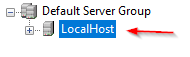
Once you have located the server level, the centre panel will provide you with the server config tabs. Please select the “Administration” tab and you will be able to amend the SSL Certificate.
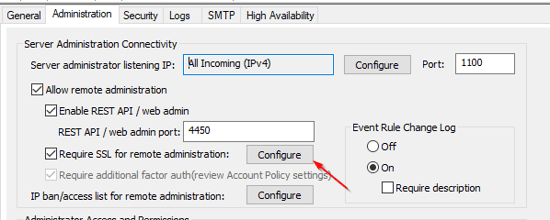
Press the “Configure” button next to Require SSL for remote administration.
In this pop up you will be able to select the certificate and the private key required.
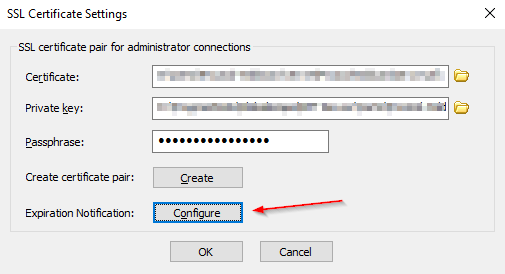
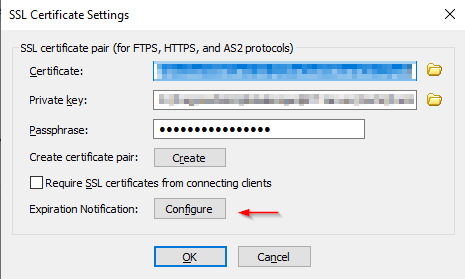
We would advise enabling the “Expiration Notification” to inform you 30 days prior to the certificate expiring.
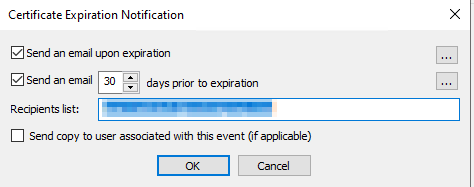
Site SSL/TLS Certificate Replacement
For each site on your Globalscape EFT server you will need to update the SSL Certificate if you are using FTPS, HTTPS, AS2 or the Web services such as Web Transfer Console or Drop off portal. To perform this change please select each of your sites one at a time and select the “Connections” tab in the centre panel.
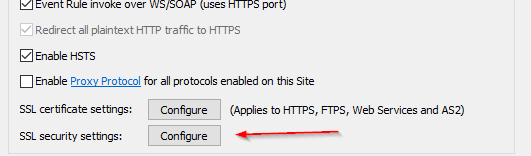
Towards the bottom half of the connection’s options, you will see “SSL Certificate Settings”. Select the “Configure” button.
The popup window looks similar to the Remote Admin SSL window, on this popup enter the location for the Certificate and the private key as before. We would advise again that you enable the Expiration Notification feature.
User Authentication SSL/TLS Certificate Replacement
When reviewing user authentication, you need to check individual user accounts to see whether an SSL certificate has been applied directly to the user for authentication or for a template. When selecting a user you can look under the Connections tab and find “SSL Auth”.
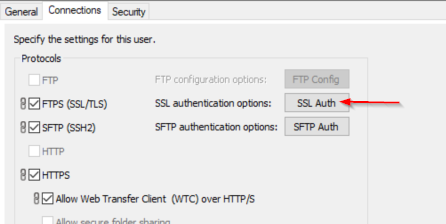
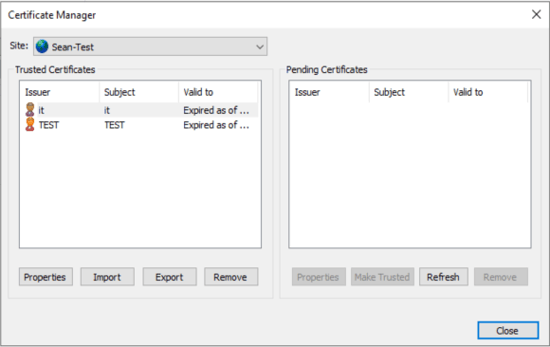
From here you will need to update the certificate in the certificate manager.
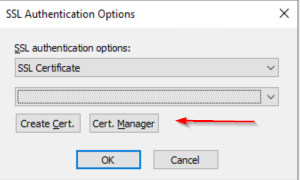
In the certificate manager you will now have access to upload any new certificates required.
Preparing for Shorter SSL/TLS Certificate Lifespans
As of March 2026, SSL/TLS certificate lifespans are getting shorter, meaning organisations will need to replace certificates more frequently than before. These changes will have implications for Managed File Transfer environments, increasing the importance of keeping track of certificate expiry dates, reviewing dependencies and planning replacements in advance.
While this article covers how to replace an SSL/TLS certificate in Globalscape EFT, it's important to understand the wider changes taking place, how they could affect your MFT environment and what steps you can take now to review and adapt your existing processes.
Please see below detailing the key dates of when changes are coming and the shortened certificate lifespans.
| Effective Date | Certificate Lifespan | # of Certificate Renewal Per Year |
| Before March 15, 2026 | 398 days | ~1 |
| March 15, 2026 (Active) | 200 days | ~2 |
| March 15, 2027 | 100 days | ~4 |
| March 15, 2029 | 47 days | ~8 |
For a broader overview of what's changing, why it matters and how to prepare, read our main article - SSL Certificate Replacement: What MFT Teams Need to Know.
If you need help preparing for these changes, reviewing your existing Globalscape EFT environment or understanding what the new requirements mean for your systems, Pro2col is here to help. With more than 20 years of experience in Managed File Transfer, our team of certified specialists can provide expert advice and practical support. Contact Pro2col today to find out how we can help.