
by Admin on April, 2017
Many administrators connect to MOVEit Automation (previously MOVEit Central) by first connecting to the MOVEit server, and then simply launching the Admin Console to connect to Localhost. This unfortunately means that all activities inside MOVEit are attributed to “A Local User”, not particularly useful when trying to read an audit log to check who ran a task.
However, by specifying the server name rather than Localhost, the MOVEit Admin tool requires that you enter credentials at the login prompt which are then used in all log entries. If you have connected remotely from the MOVEit Admin installed on a PC, or have connected by the web interface, there is no choice other than to enter credentials.
So how do you get these credentials?
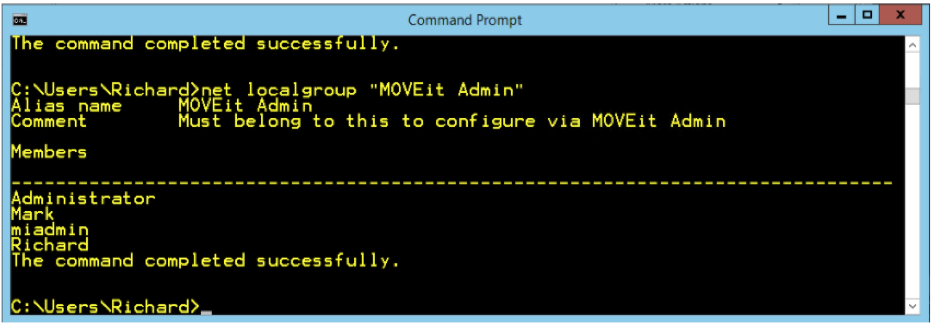
When you install MOVEit Automation, two local groups are created; MOVEit Admin and MOVEit Log. Adding users or Active Directory groups into these local groups grants access to the system:
You can also add users and groups via Automation Admin (Settings-Permissions-Select group and Edit), although be careful about the length of time it takes to scan your Active Directory:
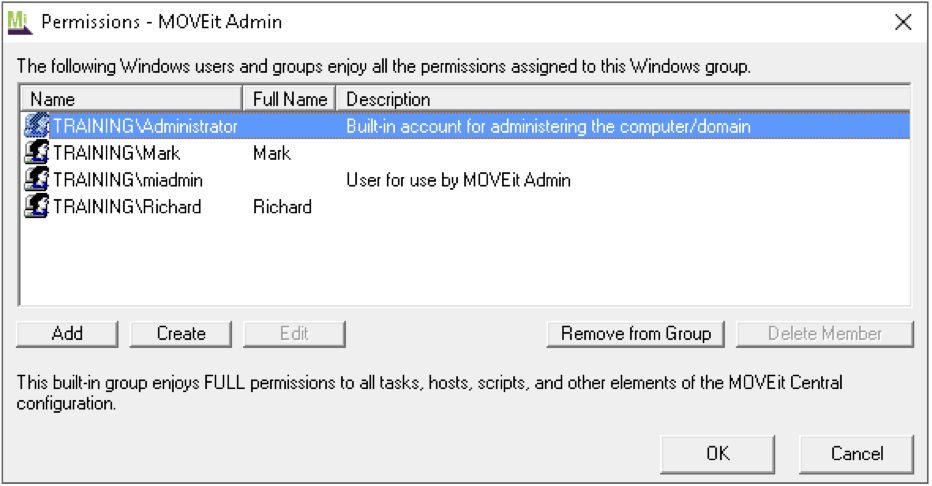
Now that users have been added, they can access the system with their regular accounts.